
Halloween: The Game Best PC Settings
Start with ray tracing off and compare medium settings on your own PC. Reduce relevant options individually. Older creator recommendations are dated below.
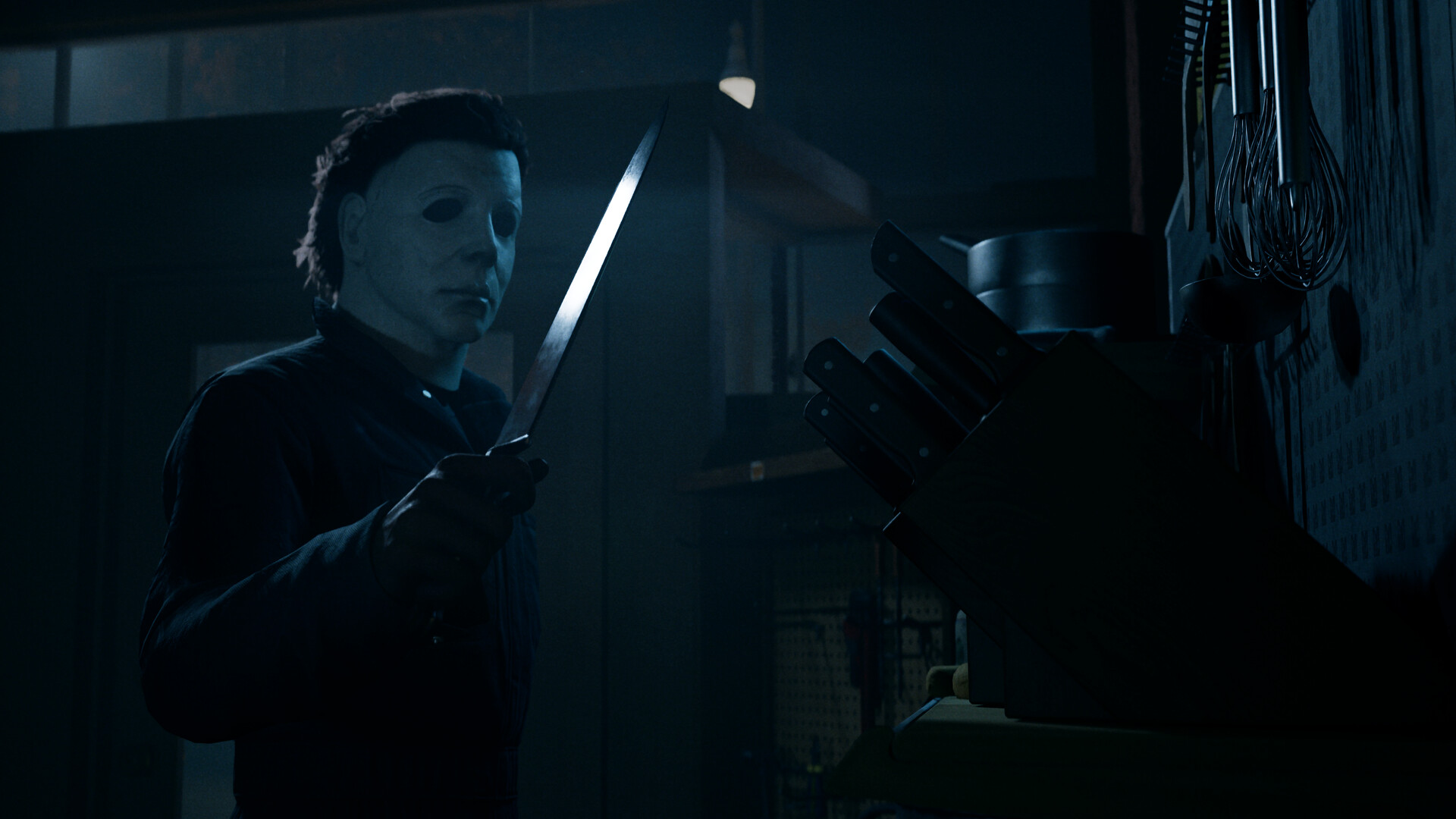
Which PC settings should you start with?
A source-backed starting point is ray tracing off, with medium settings before testing lower shadows, global illumination and reflections. Treat that as a comparison setup drawn from creator advice, not a verified best preset for the latest build. The collected sources disagree on some options, and no reviewed official page publishes a universal best-settings table.
Start with the current update context before copying a launch-era configuration. The recorded recommendations include version 1.0.2 observations, while later official notes describe performance fixes. That difference matters when a video says a switch did nothing or presents a particular frame rate.
What the official performance notes confirm
Patch 1.1.0 added PC shader precompilation at startup and listed improvements involving DLSS, FSR, XeSS and map performance. Those are developer-reported changes, without a published gain for every graphics card or scene. Let the documented startup preparation finish before comparing a new session with an earlier one.
Hotfix 1.2.1 lists a fix for DLSS-G causing frame-rate drops in some situations. It also addresses controller navigation to the PC graphics-performance settings. Neither item supplies a new benchmark table, a recommended preset or proof that every report of stuttering has been resolved.
A dated graphics starting point
The collected settings walkthrough recommends turning ray tracing off and using mostly medium options as a starting point. It then separates heavier shadows, lighting and reflections from effects or outdoor vegetation. Its recorded test context is version 1.0.2, so the table below describes a historical starting point to compare.
| Option | Starting point or next comparison | Evidence boundary |
|---|---|---|
| Ray tracing | Off initially | Shared creator recommendation, not an official requirement |
| General quality | Medium as a first comparison | Older creator advice, not a current tested preset |
| Shadows | Compare a lower setting | Two recorded creators identify shadows as worth testing |
| Global illumination and reflections | Lower individually if performance remains poor | Creator recommendation with no universal gain |
| Effects and foliage | Compare around effects-heavy or outdoor scenes | Scenario-dependent creator advice |
| Textures | Keep readable detail unless memory or loading symptoms suggest testing lower | Dated article advice, not a measured memory threshold |
A second recorded creator instead favored keeping many options high on the PC used for that video. That disagreement is useful evidence against presenting one table as correct for every machine. Use the starting point to organize your comparisons, rather than treating each row as a compulsory setting.
Prioritize shadows, lighting and visibility
The first walkthrough points toward shadows, global illumination and reflections when performance is generally poor. It separately suggests reducing effects in effects-heavy situations and foliage for outdoor problems. These recommendations give you specific options to compare without inventing a fixed improvement for changing them.
The second creator reported a difference from lowering shadows and disabling ray tracing on a particular PC. That result came from a dated version and hardware combination, not this site's testing. Compare the same part of your game before deciding that the identical change has the same effect on your system.
Visibility also matters when using the resulting image to follow an escape route or identify a threat. The collected Hone article specifically discusses readability in dark areas when comparing upscaling with native rendering. Pair your visual check with the escape guide, rather than pursuing a frame-rate claim while losing details you need to see.
DLSS, FSR, XeSS and resolution scaling
A more recent settings explanation discusses DLSS, XeSS, FSR and TSR alongside resolution and quality choices. It offers creator advice without a recorded hardware benchmark. Use the options actually present on your client, and compare the image as well as the reported performance.
The older walkthrough uses automatic or balanced DLSS options as part of its personal setup. The collected article also suggests comparing a quality option against native rendering where it is available. These are different starting choices, so the sources do not justify calling one upscaling mode universally best.
Reducing resolution scaling may improve performance while producing a softer image, according to the earlier walkthrough. The material does not establish one ideal percentage or one correct resolution for every display. Keep the selected resolution and scaling choice recorded when comparing results, because otherwise the comparisons describe different images.
Frame generation: keep old observations dated
The 1.0.2 video titled Your PC Isn't the Problem reports that DLSS frame generation did not change the author's frame-rate reading, while FSR frame generation did. This describes that creator's recorded configuration and scene. It is not a current finding about every supported GPU.
The later official DLSS-G fix changes the context in which that older observation should be read. Check the installed version before concluding that an old video proves the option is broken in your client. The collected evidence supports a fresh comparison, but does not supply a new measured result for this guide.
Frame caps, VSync and display choices
The more recent tutorial suggests using a frame cap that matches the display refresh rate and trying VSync when tearing is visible. Another older walkthrough suggests an uncapped rate where it is stable, with a lower cap to compare if stuttering occurs. These are attributed creator suggestions, not a single agreed game requirement.
The sources also discuss different display and resolution choices without establishing a universal configuration. This guide therefore does not prescribe a stretched resolution, external display utility or fixed frame-rate target for every player. Compare a choice that addresses your actual symptom, and keep the remaining options stable while doing so.
Compare results without borrowing someone else's benchmark
Record the game version, hardware, resolution, upscaling choice and scene used for a comparison. Change one of the relevant options, revisit the same situation and check both responsiveness and image readability. This is a way to compare the collected suggestions; it does not turn their old measurements into new tests.
A version 1.0.2 creator used an RTX 3060 with an i7-14700K, while another used an RTX 5080 and a 5800X3D. Their reported observations belong to those machines and recorded situations. They cannot establish your result merely because you choose the same preset name.
The Steam store page lists PC requirements and performance targets, but does not define every preset, scaling or ray-tracing condition behind those targets. Use it for purchasing requirements, rather than as a promise that a particular settings combination must reach a particular rate. For console-specific features, use the PS5 guide.
Sources and review scope
- Official Patch 1.1.0
- Official Hotfix 1.2.1
- Recorded version 1.0.2 settings walkthrough
- A second creator's hardware-specific observations
- Recent graphics-options explanation
- Hone's dated settings article